Epilog Fusion Pro
In this guide you'll find information about how to operate the Epilog Fusion Pro safely, how to run a job, approved materials, and what to do when things go wrong.
Before You Start
Go through these three points every time, without exception. If you are unsure, ask a staff member:
- Material: Always verify that the material you are cutting is approved. Some materials release toxic gases when cut. Make sure to only use the materials provided in the lab or ask a staff member.
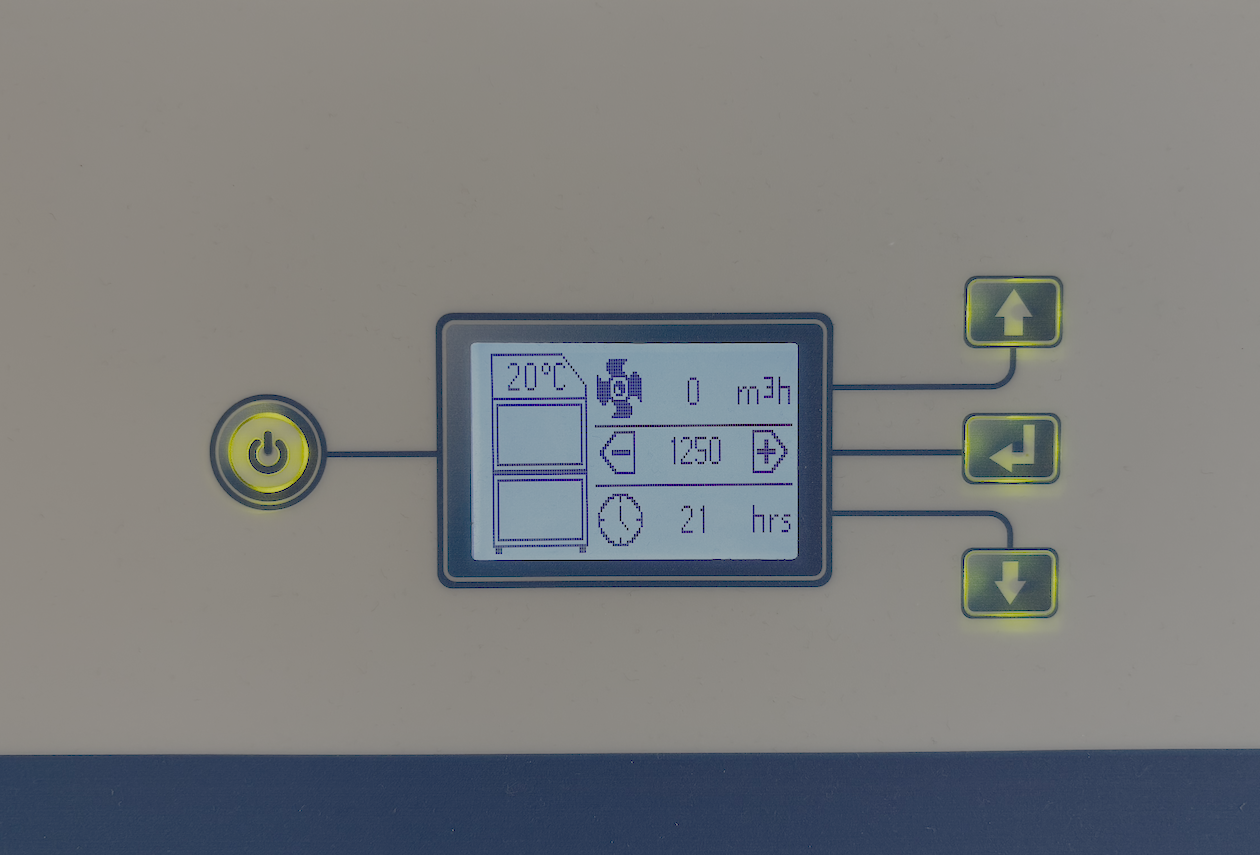
- Air filter: Check that the air filter is on and not showing a red indicator light. The filter removes smoke and particles from the cutting process. Without it, smoke will accumulate in the room and trigger the fire alarm.
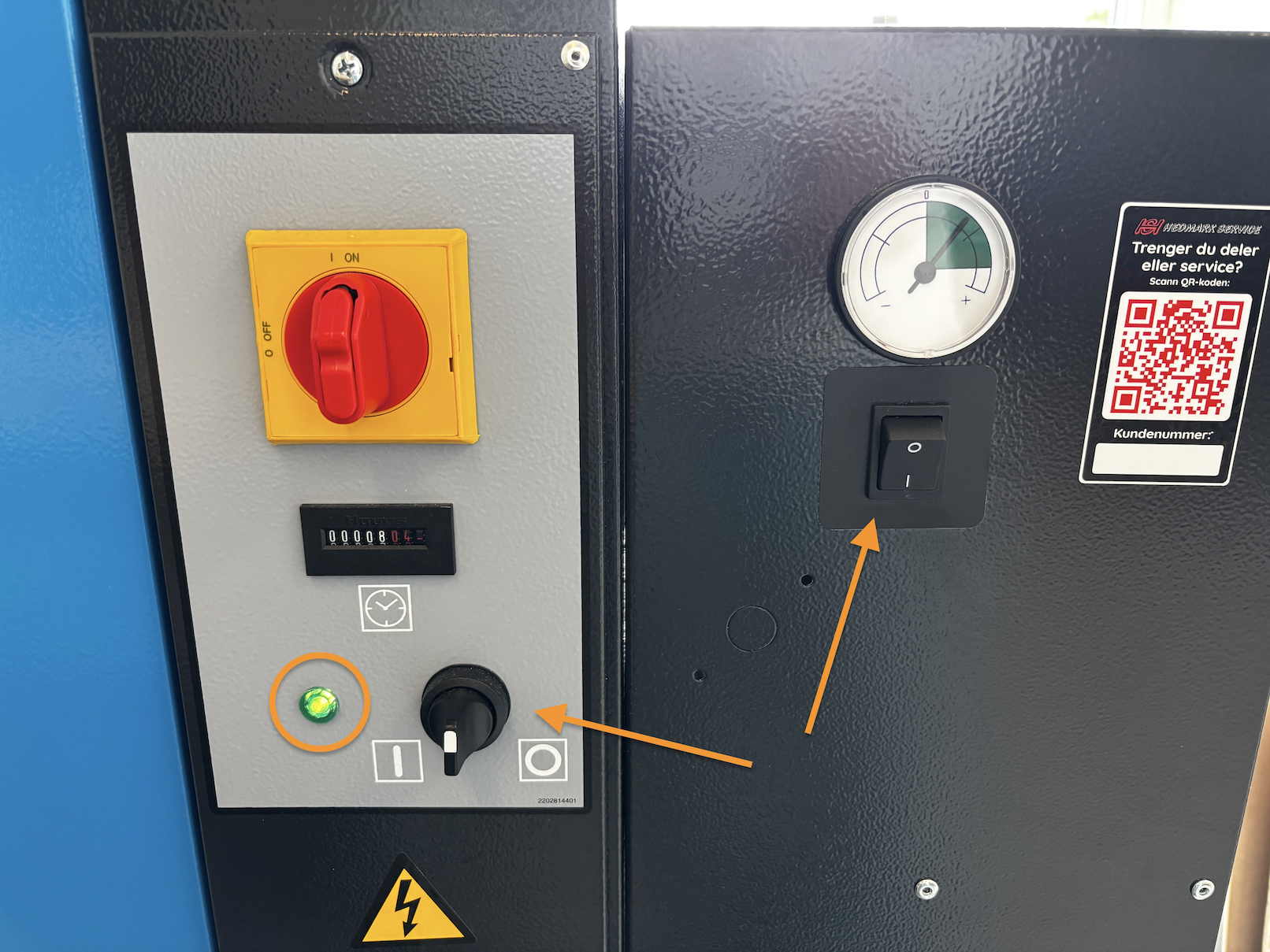
- Compressor: Check that the compressor is on and pressurised. The laser uses compressed air to blow smoke away from the cutting point.
Which materials can I use?
Only cut approved materials. Some materials give off toxic gases or catch fire in the laser. If you're not sure what a sheet is made of, don't cut it: ask staff.
| Material | Notes | Allowed |
|---|---|---|
| Plywood / MDF | Max 6 mm recommended. | Yes |
| Cast acrylic | Catches fire easily when cut: watch it closely. | Yes |
| Cardboard / paper | Yes | |
| Leather | Vegetable-tanned only. | Yes |
| Natural fabric / felt | Yes | |
| Cork | Yes | |
| Coated or laminated | Only if staff have verified it's safe. | Ask staff |
| PVC / vinyl | Gives off chlorine gas. | Never |
| Polycarbonate | Never | |
| ABS plastic | Never | |
| Carbon fibre | Never | |
| Food | Never |
Startup
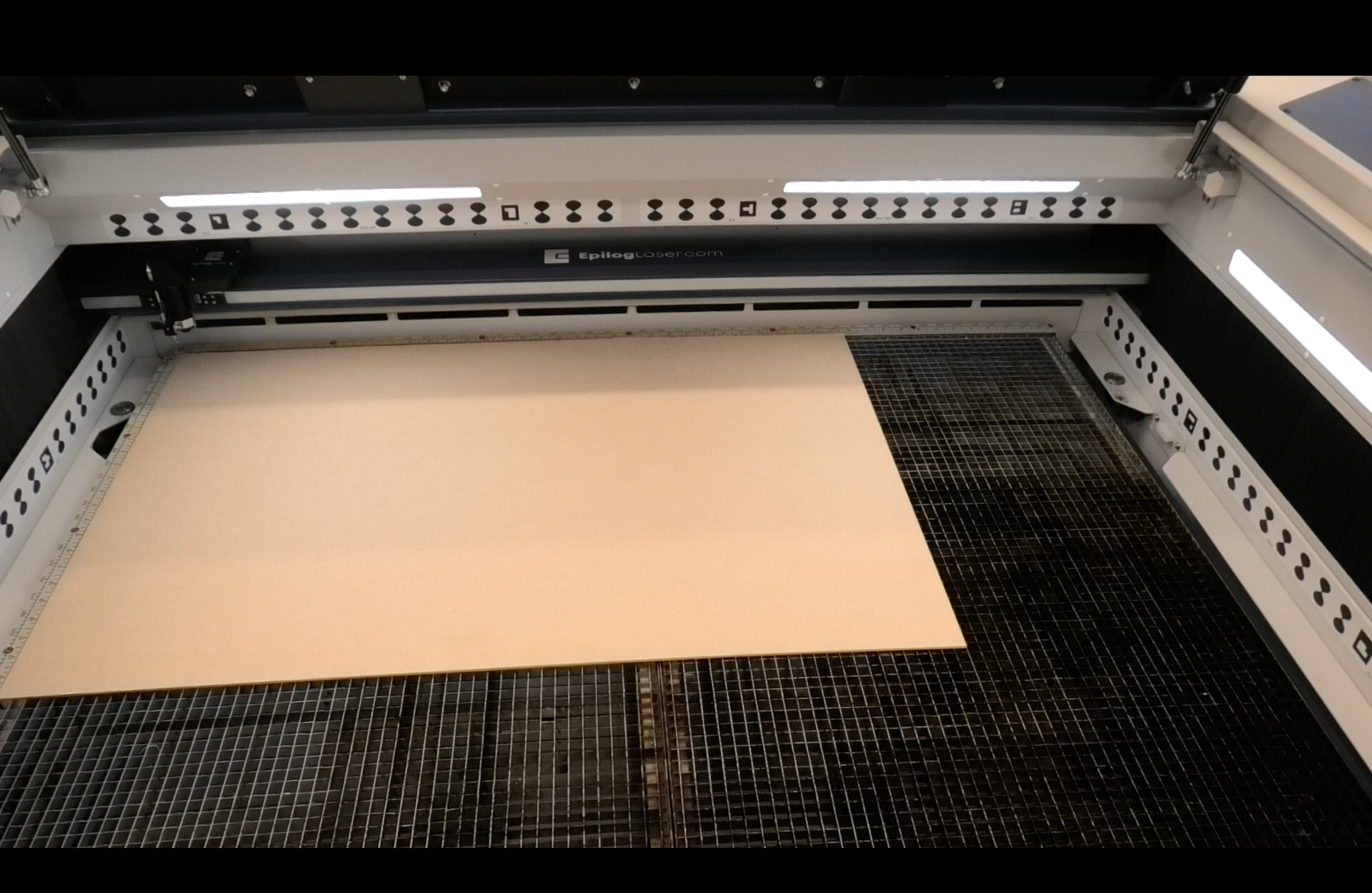
- Check that the work surface is empty and clean. The machine can crash during its startup sequence if material is in the way.
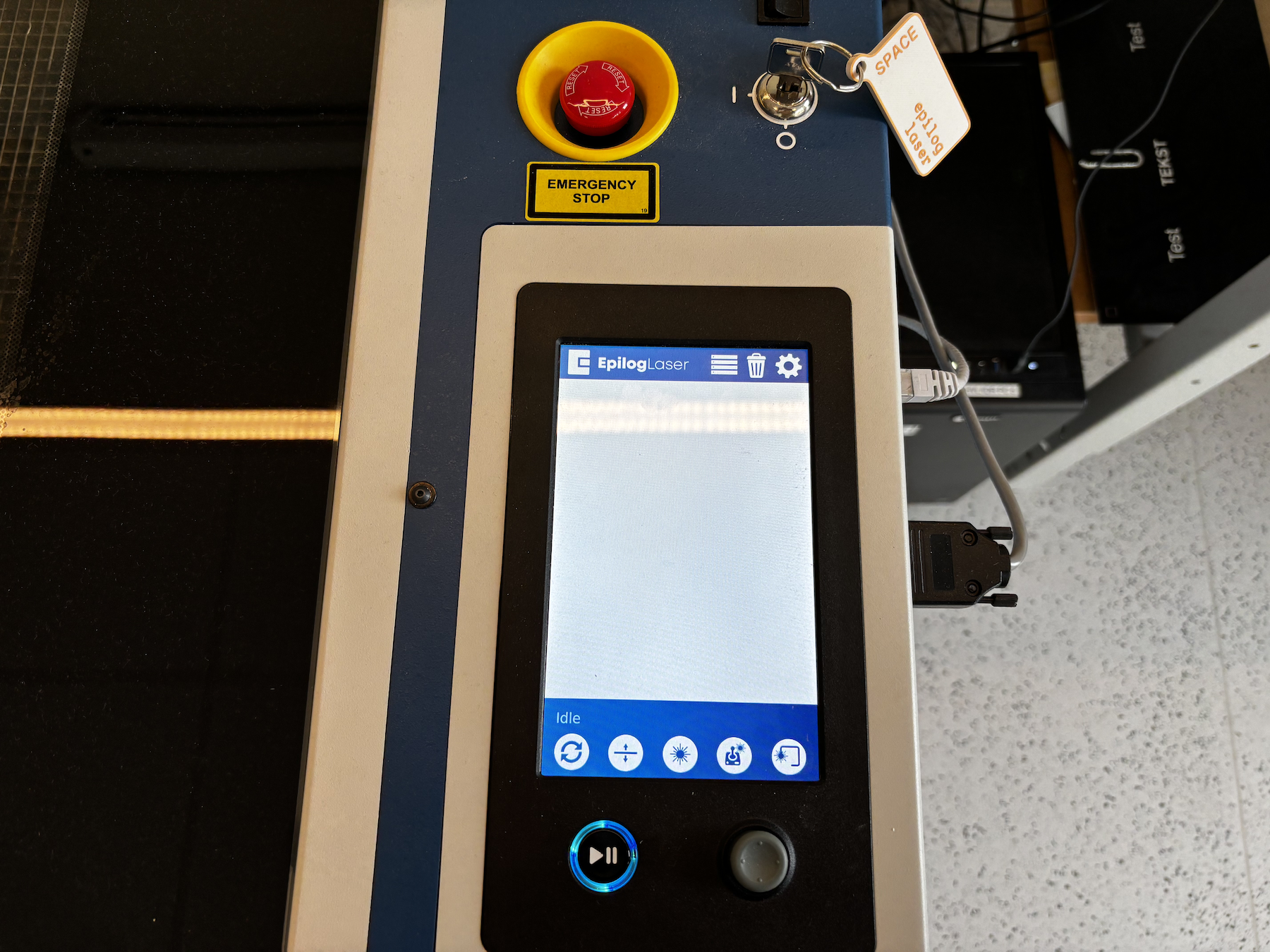
- Turn on the machine with the key. The laser runs through a calibration and startup sequence. It is ready when the loud hissing sound stops and the screen shows the home screen.
- Put your approved sheet of material in the top left corner of the work surface.
Machine Interface
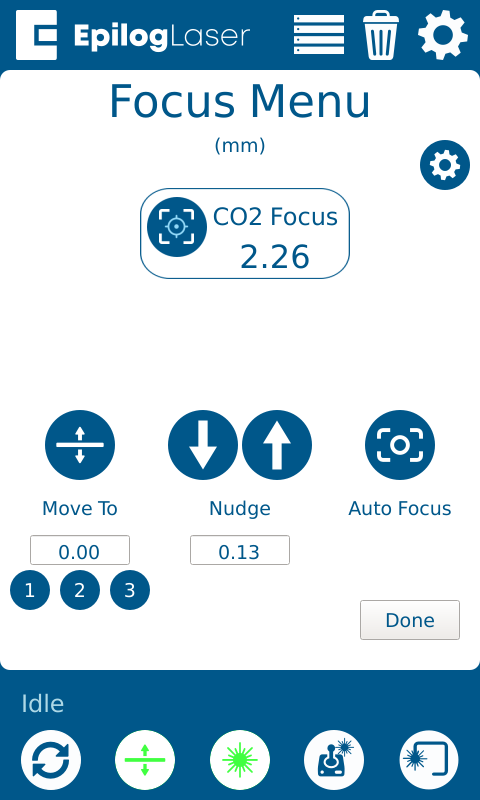
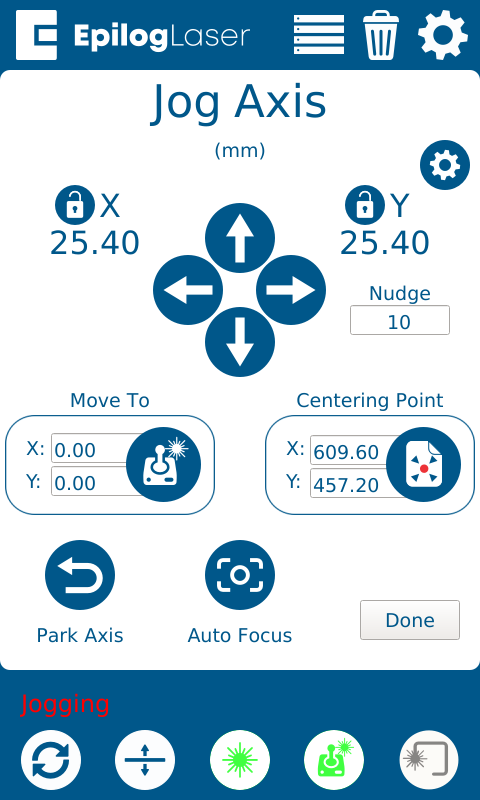
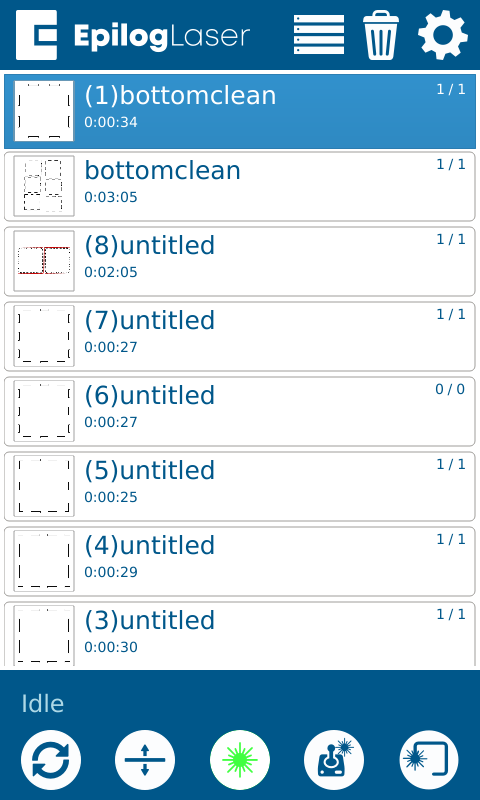
Before continuing, familirize yourself with the interface of the machine. Here you can jog the machine, set focus (read next step, important!), and execute uploaded jobs.
Focusing
The laser beam must be focused to the top surface of the material to make accurate cuts.
Autofocus: Place your material in the work area. -> Select the joystick icon on the bottom of the screen. -> Move the probe over the material using the joystick on the machine. -> Select autofocus on the machine panel -> the probe on the laser head will lower until it touches the material and calibrates automatically. Make sure the probe actually reaches the material; if the work surface is empty the bed will rise until it crashes.
Manual focus: Flip down the focus gauge (the little pin above the probe) and adjust the bed level on the screen until the bottom of the gauge just touches the surface of the material. Flip the gauge up again before starting the job.
Preparing and Running a Job
The laser cutter works like a printer. You send files directly from your design software via the print dialog. We recommend Rhino, but Adobe Illustrator and Inkscape also work.
- Transfer your file from your computer to the lab computer (placed beside the laser). You can use an USB stick or upload it through justbeamit.
- Open your file in your design software. On the lab computer we have Rhino installed.
- Always perform inner cuts before outer cuts for a good result. Make sure to layer the lines appropriately.
- Press
Ctrl + Pto open the print dialog. - Select Epilog as the printer, make sure the scale is set to 1:1 with matching unit of measurement, and press print.
- In the Epilog Dashboard, place your design on the material. Place it in a corner or next to earlier cuts, so the rest of the sheet can still be used.
- On the right side panel you can group cuts by colour and set parameters (vector or engraving, speed, power). We have presets for all the materials we use in the lab.
- Press print.
- Find the job on the machine panel and press the pause/play button to run the job.
Stopping and Cancelling
- Emergency stop: Use the red emergency stop button if there is a fire or crash. This shuts down the system immediately — the machine must be restarted afterwards.
- Opening the lid: Opening the lid automatically turns off the laser beam while it continues the job. This means it will continue the job path, but without cutting anything.
- Pause / cancel: Press the play/pause button to pause. To cancel completely, press return to home at the bottom left of the panel.
When the job is done
- Let it cool down. Wait about two minutes before you open the lid, so the smoke is extracted and your parts can cool.
- Take out your parts and offcuts. Mark that your fingers will smell for a while if you touch the burnt edges directly.
- Clean up for the next person. Remove all scraps from the work surface. Put usable offcuts under the lab computer.
- Switch off The laser with the key and the compressor.
Kerf
If you are making something that is supposed to fit/snap together it is important that you have an understanding of what the kerf is. The laser beam burns away a thin strip of material (the kerf) on each side of the vector line, so parts come out slightly smaller and holes slightly bigger than drawn. Kerf is determined by a lot of factors. Type of material, thickness, laser focus, cut speed and power, pressure of compressed air, etc. We recommend you cut a small test piece before a full set of finger joints or press-fit parts, to ensure you get the right fit.
Get help
- Staff are in the lab Monday–Thursday, 09–15.
- Discord: ask in the Space 162 server.
- Going deeper: Epilog's manual for the Fusion Pro.
Missing something in this guide?