Formlabs Form 4
How to print safely on the Form 4 resin printer: preparing the file in PreForm, printing, rinsing in the Form Wash, curing in the Form Cure, and what to do when something goes wrong.
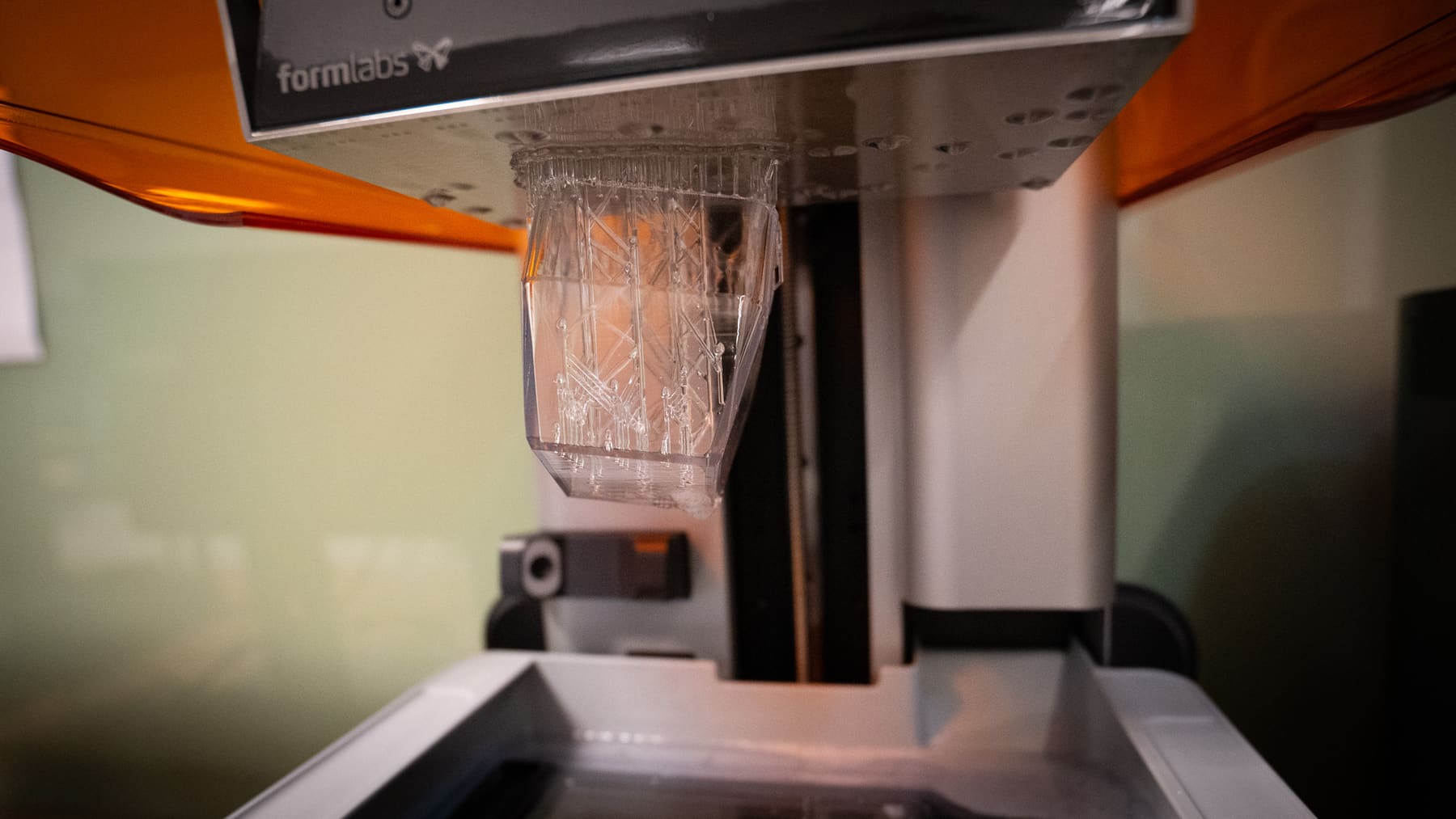
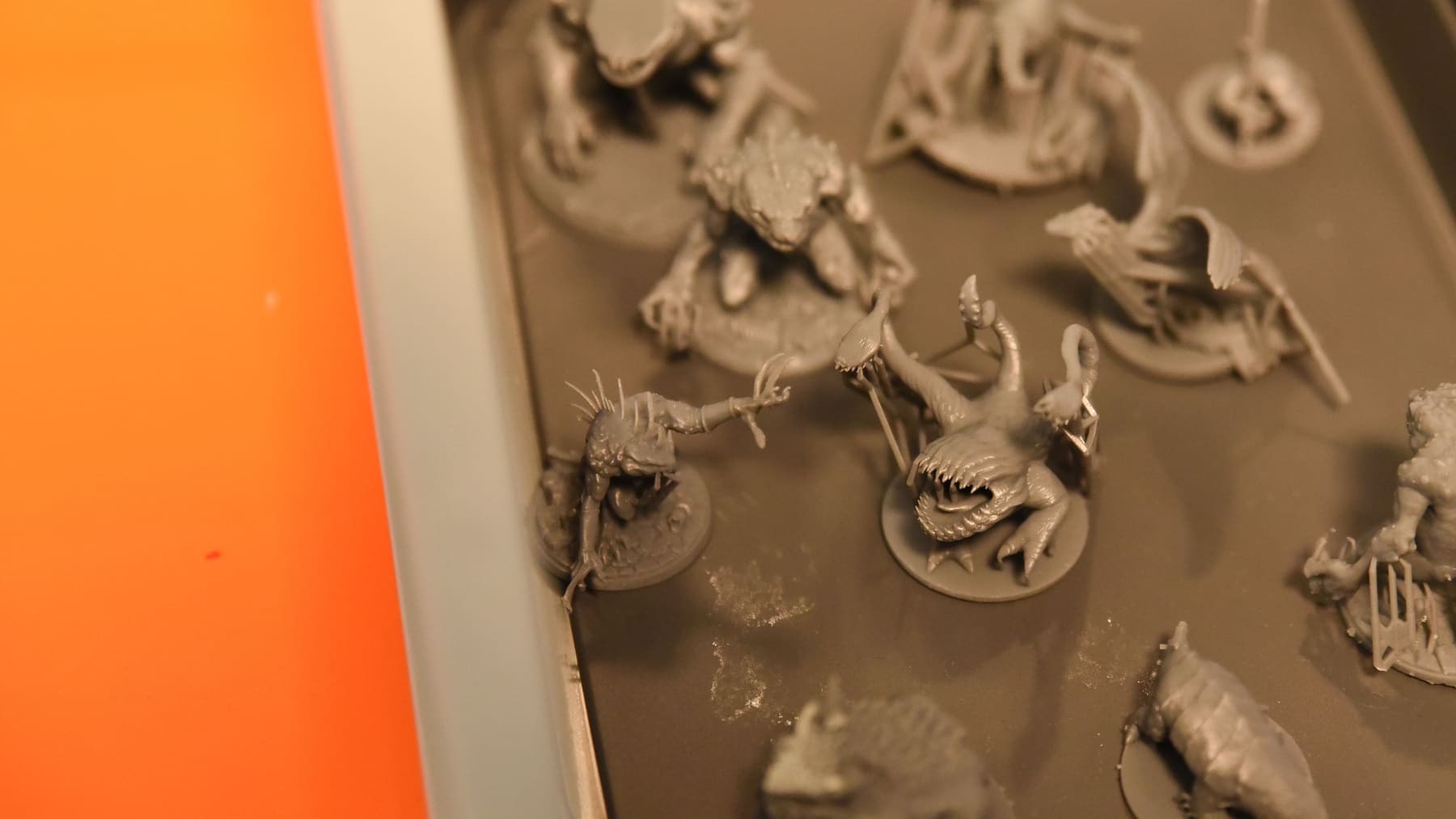
Understand the process
SLA (Stereolithography) is simliar but also different FDM printing and we have to take some precautions. Protolabs (former 3Dhubs) holds a good overview that you can read here.
We can think of SLA printing as a 3-step process. 1. printing, 2. rinsing and 3. curing. This guide takes you through the basics. You'll find more in-dept tutorials and guides at Formlabs webpage.
Check the printer
Use gloves and eye protection on before you open the cover.
- The resin type. Each resin has its own tank and mixer. Check that the resin in the printer is the one you intend to use.
- Tank and mixer in place. Both latches on the tank are closed, and the mixer latch is closed.
- Resin cartridge. Check that the label on the resin cartridge matches the one on the tank. Take out the cartridge and shake it so the resin is well mixed. Put it back, and press open the vent cap on top, so the tank fills correctly. Never remove or poke the rubber valve at the bottom of the cartridge.
- Resin in the tank. It should look smooth. Clumps or very thick resin mean it is too old: tell staff.
- Build platform. It is clean, the print surface is flat, and the platform latch is lowered.
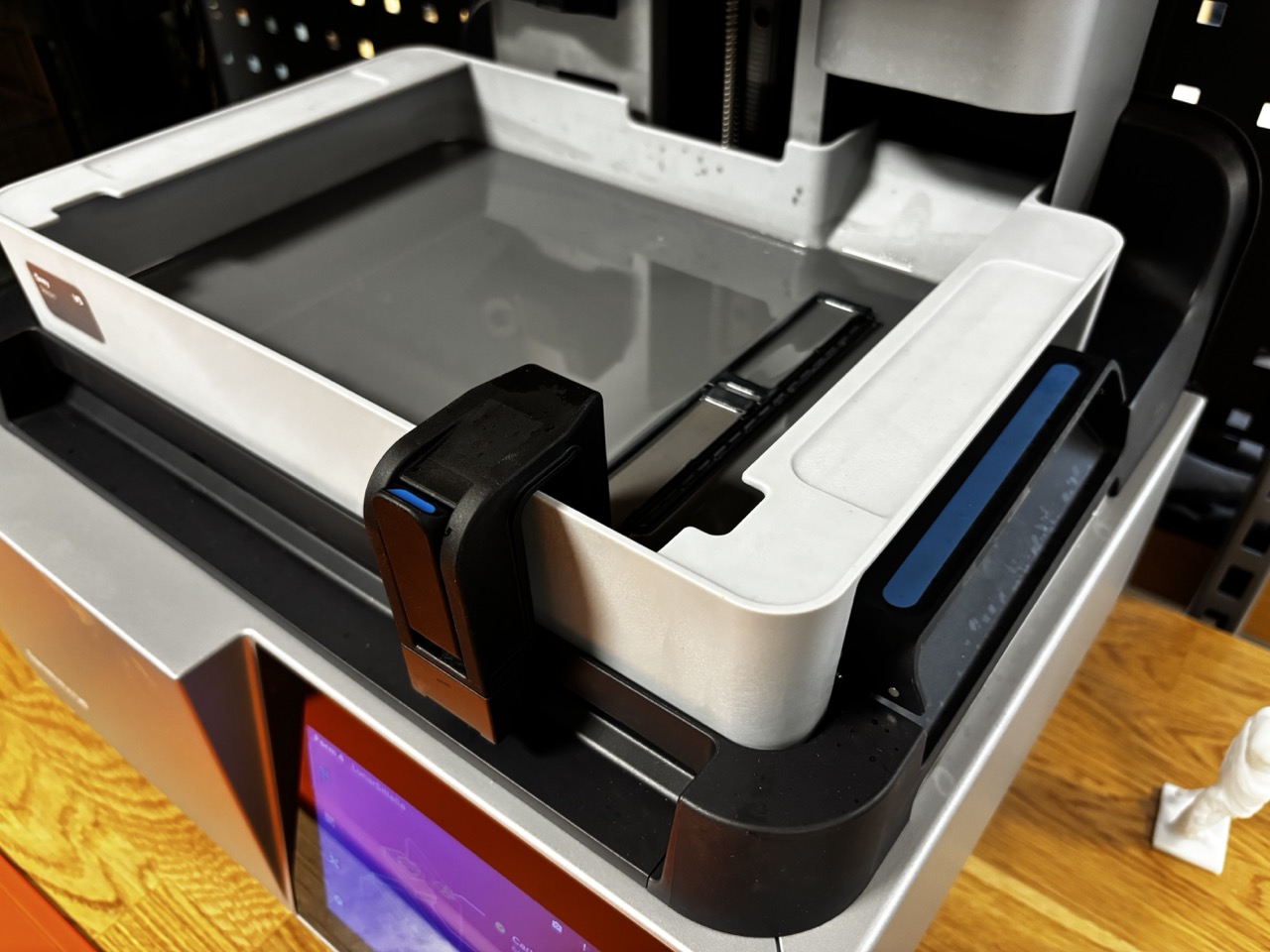
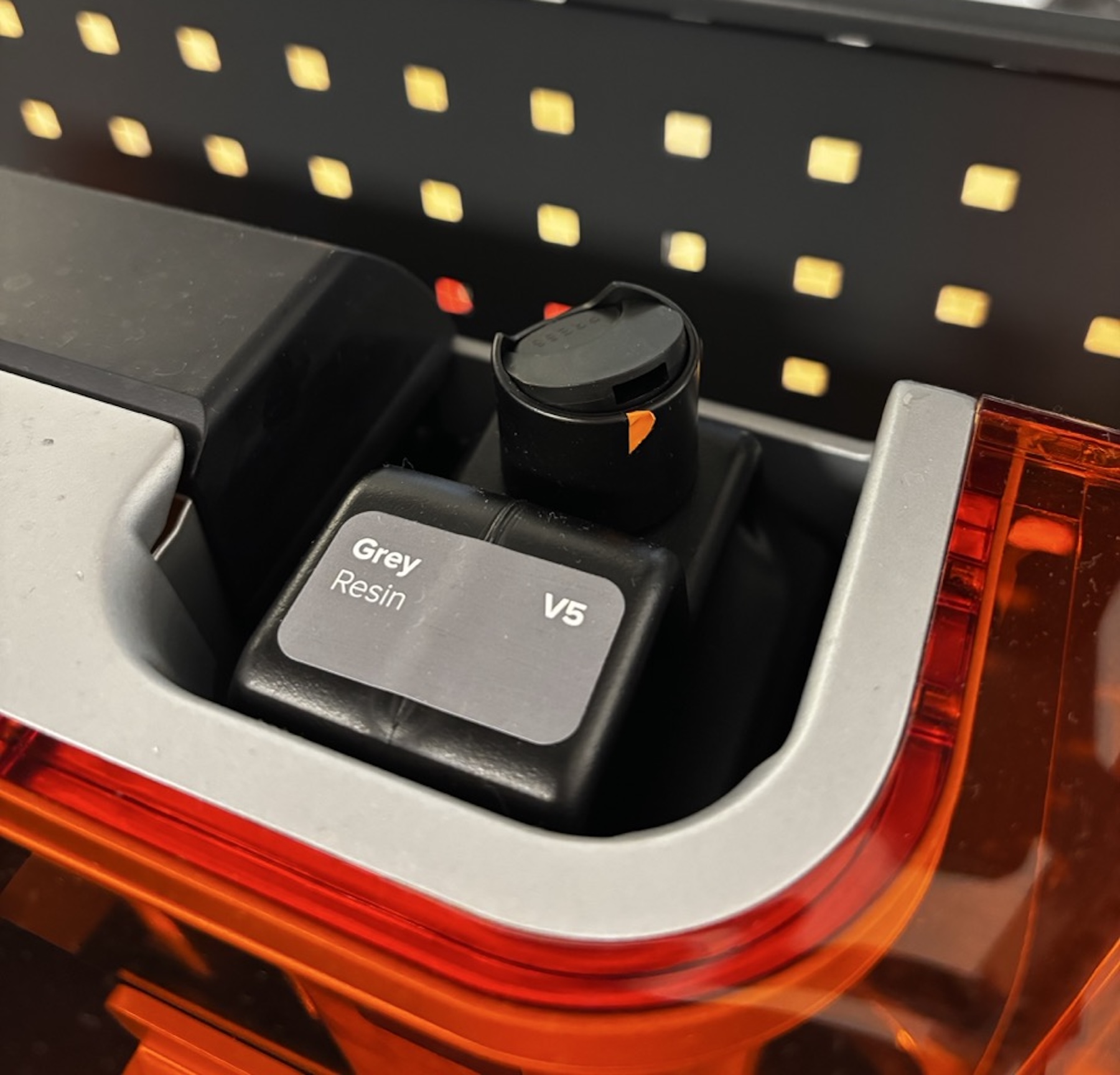
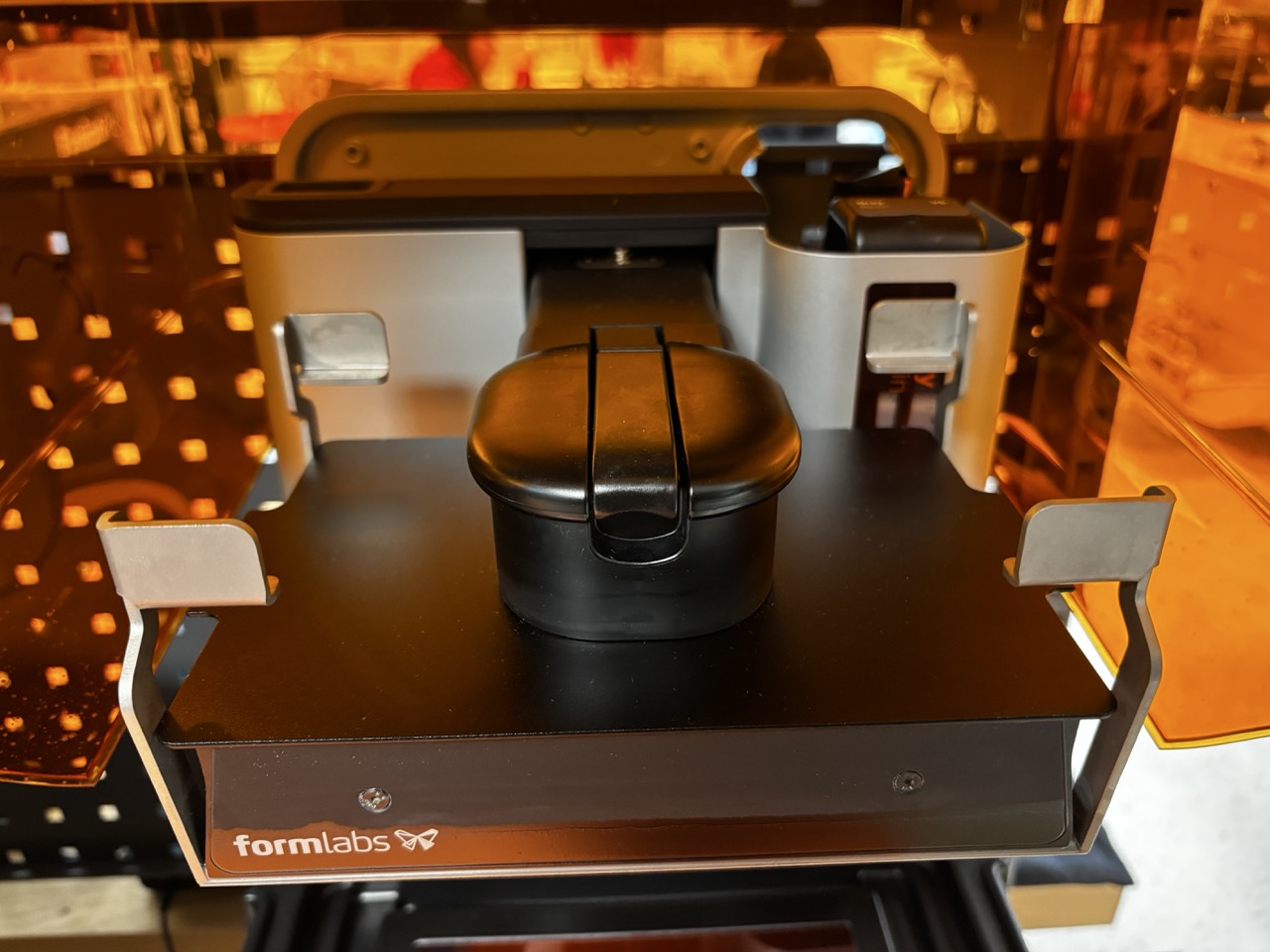
To familiarize yourself with the different elements of the printer, read Formlabs Quick Start Guide. Especialy note the Required for printing.
Prepare your file
- Open PreForm on the lab computer, Or download Formlabs' free software, from formlabs.com/software/preform.
- Import your model. PreForm opens .stl, .obj and .3mf files.
- Choose the printer and the material. Select Form 4, and the resin that is in the printer.
- Orient and support the model. Every layer needs something to build on. Use PreForm's automatic orientation and supports, then check them: supports leave small marks, so keep them off the surfaces that need to look good. Reorient if necessary.
- Start the print from PreForm to the Form 4 by pressing "Print Now" if you are sure the printer is ready.
To explore PreForm's features, open Help > Show Onboarding inside the program. You can also ask Formlabs' own virtual assistant trained on their own documentation.
When the print is done
- Put on gloves and eye protection.
- Let the resin drip off the parts and the build platform before you take the platform out. The less resin that ends up in the Form Wash, the longer the IPA lasts.
- Take out the build platform and close the cover straight away, so the resin in the tank isn't exposed to light. Don't point the print surface at your face.
- Take the parts off the platform. Push the release tabs on the Flex Build Platform with your thumbs, and the parts pop off.
- The build platform:
- Printing again in the same resin? Put it back in the printer without rinsing.
- Done printing, or changing resin? Rinse the platform in the Form Wash too, and let it dry.
Rinse the parts
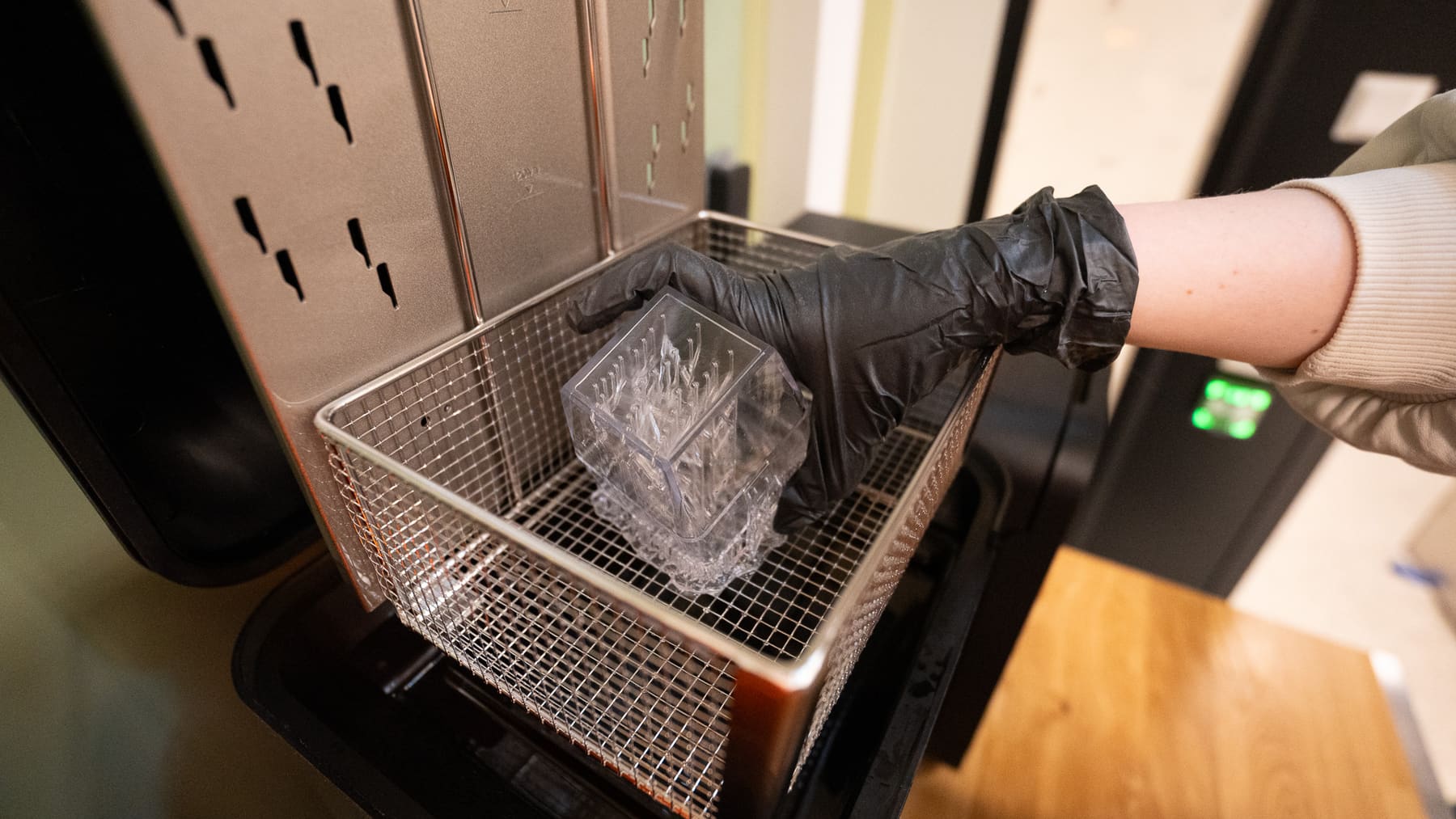
- Raise the basket by pressing Raise on the Form Wash.
- Put your parts in the basket. Never put loose parts straight into the IPA.
- Set the time for your resin. Standard resins (Grey, White, Black and Clear V5): 5 minutes. Draft: 10 minutes. Other resins: see Formlabs' wash times. Don't rinse longer than needed: some resins get sticky or weak in IPA.
- Press Start. The basket lowers into the IPA. When the time is up, it lifts out and lets the IPA drip off.
- Check for resin left in holes and hollows. Rinse again if needed.
- Let the parts dry on the orange mats in front of the printers until the IPA has evaporated: Formlabs recommends at least 30 minutes. Wet parts won't cure properly.
Remove the supports
You can remove supports either before or after curing, but the best timing depends on your part’s geometry. Use flush cutters, tweezers or a hobby knife/scalpel to remove supports.
- For thin or fragile parts, leave supports on during curing to prevent warping.
- For large or thick parts, consider removing supports before curing.
- After curing, parts are stronger and can be sanded and polished with less risk of damage.
Cure the parts
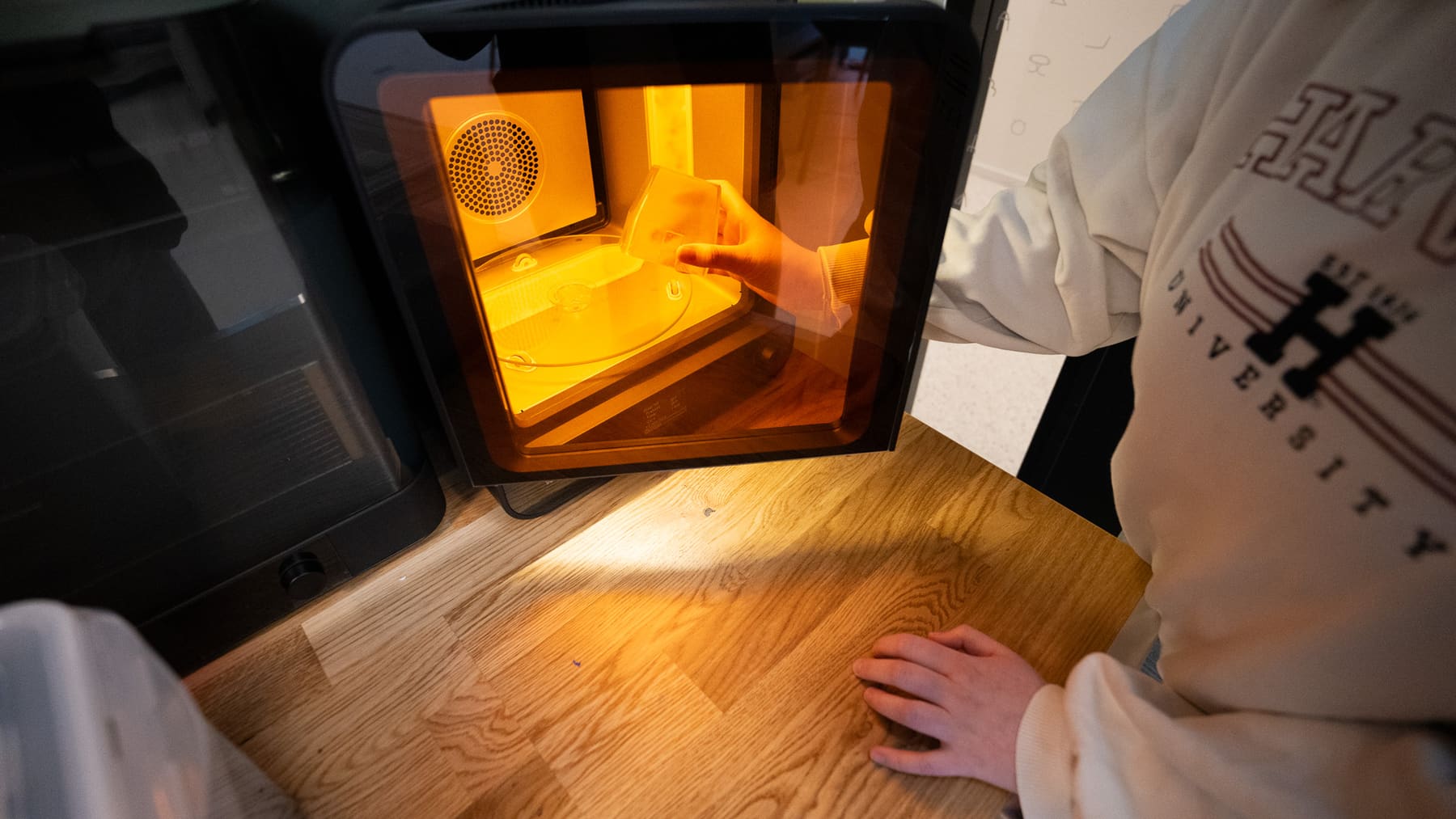
The Form Cure hardens the parts with light and heat, so they get their full strength.
- Make sure the parts are dry, inside and out. Never put parts with liquid resin or IPA on them in the Form Cure.
- Open the door and spread the parts out on the turntable, so light reaches every side. Close the door.
- Choose the cure profile for your resin with the knob: material and version. Press to confirm. Standard resins (Grey, White, Black and Clear V5): 5 minutes at 60 °C for a full cure. Other resins: see Formlabs' cure settings. Thick, bulky parts need longer.
- Press Start. The parts stay inside while the Form Cure heats up; the timer starts when it reaches the temperature.
- Take the parts out when it is done. They can be hot.
Clean up
- The resin tank stays in the printer with the cover closed. If you take it out, put the lid on and store it flat, out of sunlight, on a clean surface.
- Resin waste: Supports, failed prints and cured resin go in the bin.
- Wipe up any spills straight away, with gloves on.
- Leave the orange mats clean for the next person.
Something went wrong?
Resin on your skin. Wash it off straight away with plenty of soap and water. Take off clothes with resin on them.
Resin or IPA in your eyes. Rinse with plenty of water for at least 15 minutes, lifting your eyelids now and then Then tell staff.
Resin spilled in or around the printer. Gloves on, wipe it up straight away with paper towels, and tell staff if it went inside the printer.
The print failed or is missing from the platform. Don't start a new print: cured pieces may be left in the tank and can ruin the next one. Tell staff.
The parts are very sticky after rinsing. The IPA may be full of resin. Ask staff, and don't keep rinsing the parts.
The parts are soft or sticky after curing. They were probably still wet. Let them dry longer and cure them again.
The screen shows an error. Take a photo of it and tell staff, or post it on Discord.
Which materials can I use?
| Material | Notes | Allowed |
|---|---|---|
| Grey V5 | Yes | |
| White V5 | Yes | |
| Clear V5 | Yes | |
| Other Formlabs resins | Needs its own resin tank and mixer. | Ask staff |
| Resins from other brands | Never |
Formlabs makes many more materials than we have in-house, but the printer can use them. Contact staff if you need something special. Switching resin takes more on a resin printer than on an FDM printer: each resin needs a clean tank and mixer, so we keep a separate tank and mixer for each resin in the lab.
Get help
- Staff are in the lab Monday–Thursday, 09–15.
- Discord: ask in the Space 162 server.
- Going deeper: Formlabs' Form 4 support pages, with in-depth tutorials and guides.
Missing something in this guide?